
Download Notebook Results
Once you've processed or subsetted large data in a dataset notebook, you can download your results to your local machine or a remote computer.
Download via Jupyter Web Interface
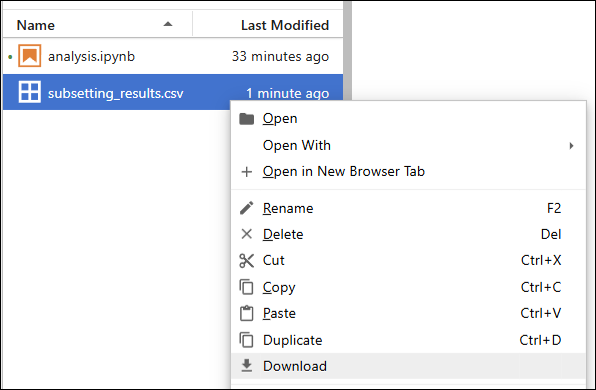
For smaller files, you can right-click in the Jupyter file browser and select Download.
Download via Scratch Directory and CLI
For larger files or when working on a machine without a browser, copy your results to your scratch directory and download them using the MSD-LIVE CLI.
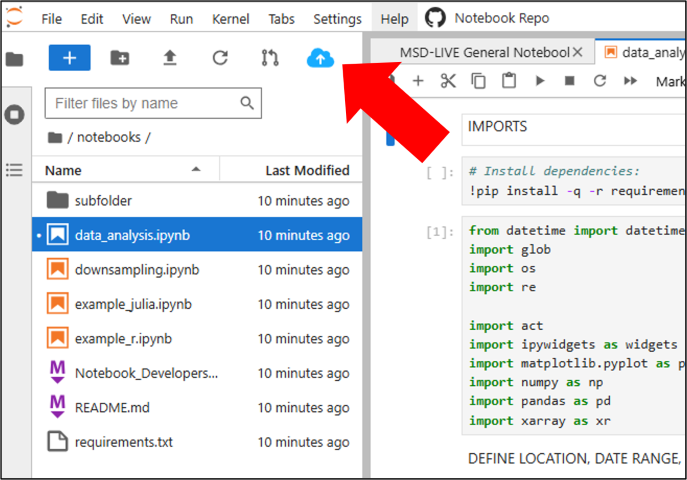
Step 1: Copy to Scratch Directory
- Open the File Browser (left sidebar in Jupyter)
- Select the files and/or folders you want to copy
- Click the blue cloud button in the toolbar
- Wait for the copy job to complete
Step 2: Download from Scratch Directory
Use the MSD-LIVE CLI to download files from your scratch directory to your local machine or a remote computer.
See the Downloading Files section of the CLI documentation for complete instructions on using the msdlive download --scratch command.
Scratch Directory Cleanup
Files in your scratch directory will be automatically deleted after 24 hours. Be sure to download anything you need before then.